
Wireless Android Auto Not Connecting? 10 Fixes
Is wireless Android Auto not connecting, dropping out while driving, or is the audio stuttering? Clearing app cache and restarting the phone helps in most cases. In this guide we list every step from the simplest to the more advanced, adapter update instructions and a table that helps you find the cause by symptom.
Key takeaways
- In most cases, clearing the Google Play services and Android Auto cache and restarting the phone does the trick.
- A wireless Android Auto adapter only works in cars that already have wired Android Auto.
- Wireless Android Auto needs a phone with Android 11 or newer and 5 GHz Wi‑Fi support.
- If the problem keeps coming back, update your apps and the adapter firmware, or factory reset the adapter.
- These steps also help when factory Android Auto, an Android Auto module or a screen will not connect.
5 steps that solve most problems
Before you start: check the basics
6. How to clear app cache
In your phone settings open Apps, select Google Play services, tap Storage and Clear cache. Repeat for the Android Auto, Google Maps and Google apps. Clearing the cache does not delete your data or settings.
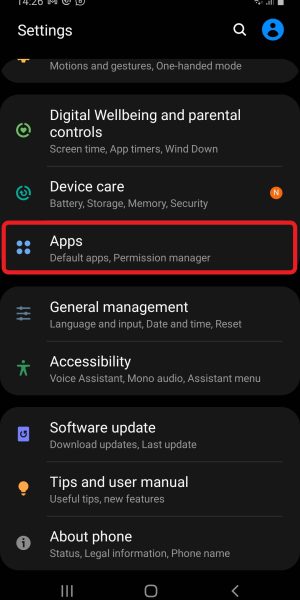
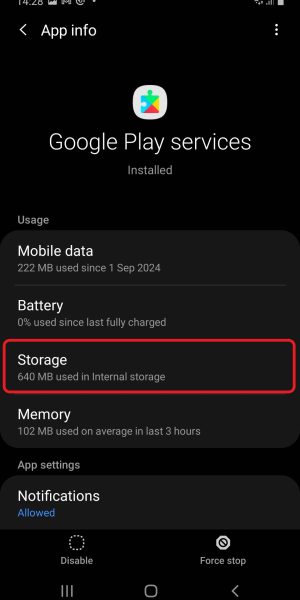
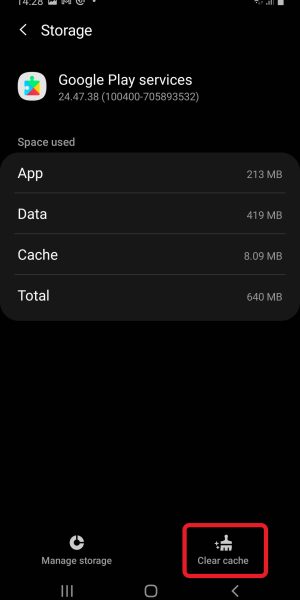
You can see how it looks on the phone in this video.
7. Reset network settings
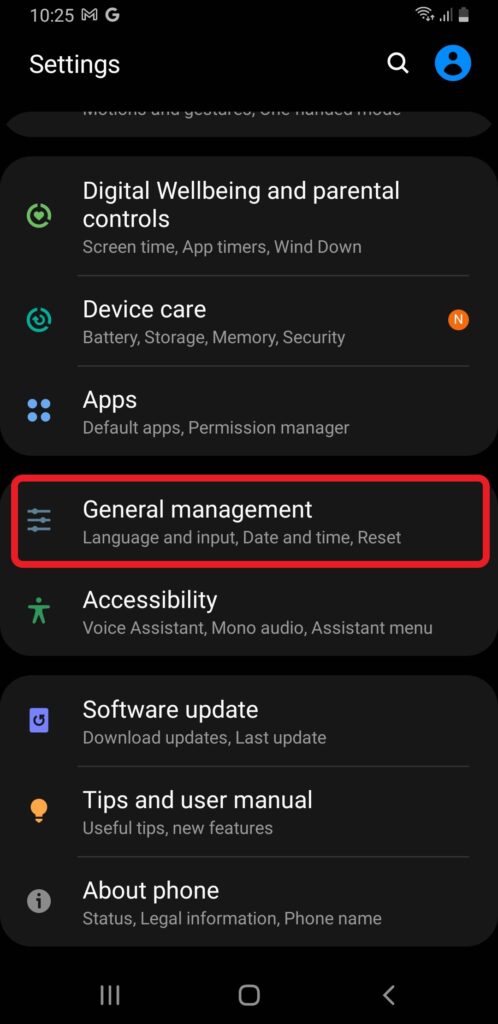
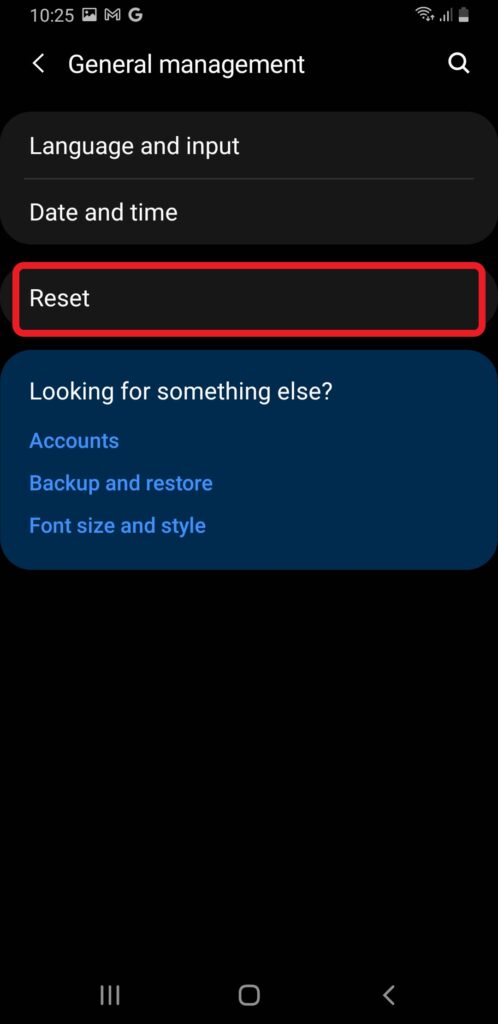
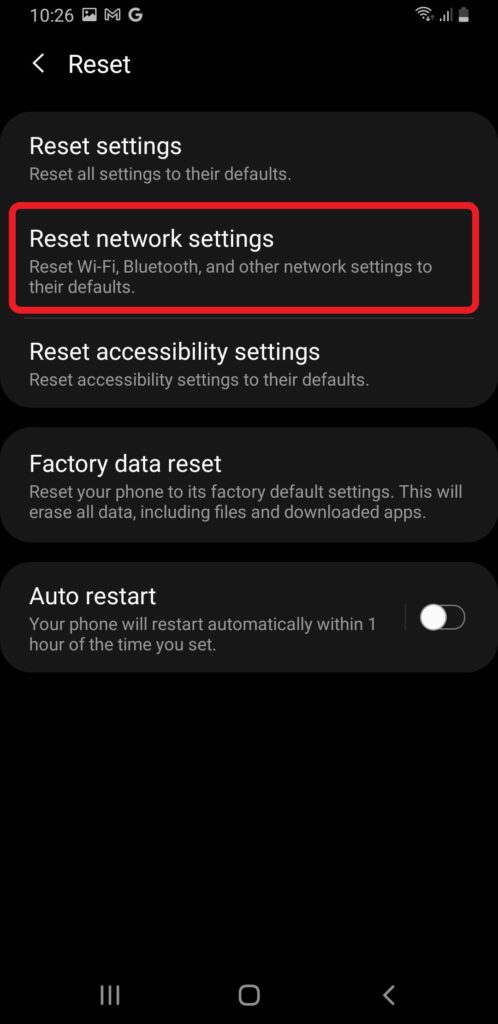
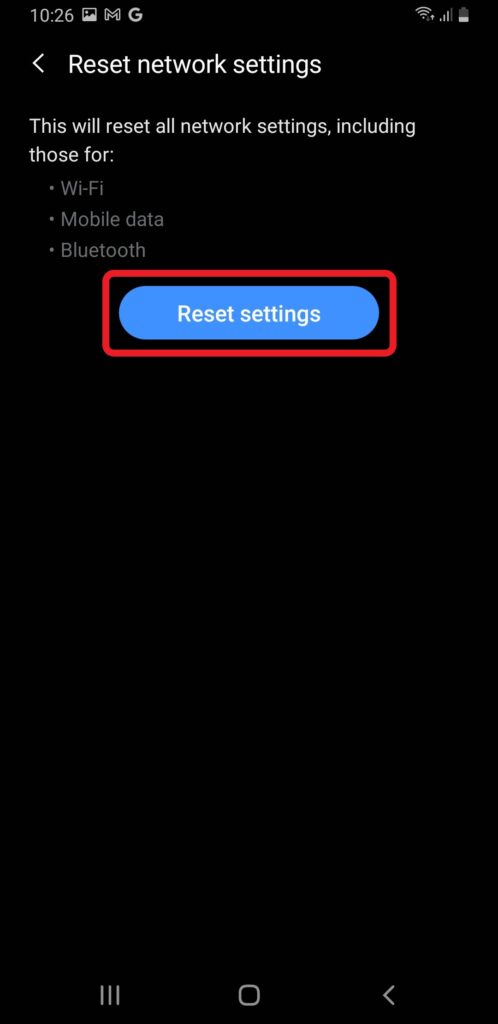
On most Android phones: Settings → System → Reset options → Reset Wi‑Fi, mobile & Bluetooth. On Samsung phones: Settings → General management → Reset → Reset network settings. Saved Wi‑Fi passwords and Bluetooth pairings are removed, but your other data stays. Then pair the adapter again.
8. Factory reset the adapter
Plug the adapter into the car's or a computer's USB port so it gets power. When the adapter lights up red, hold its button for 3–4 seconds until it turns green.
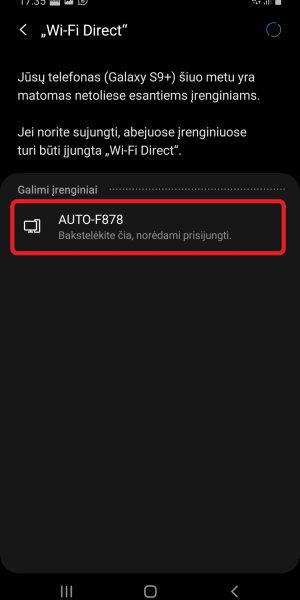
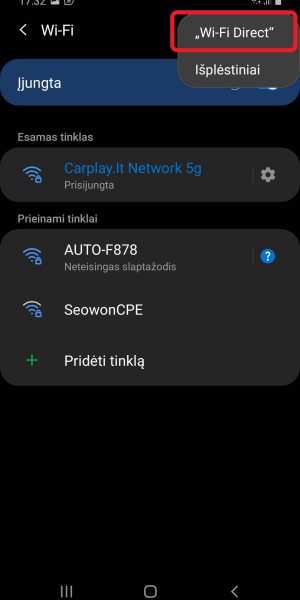
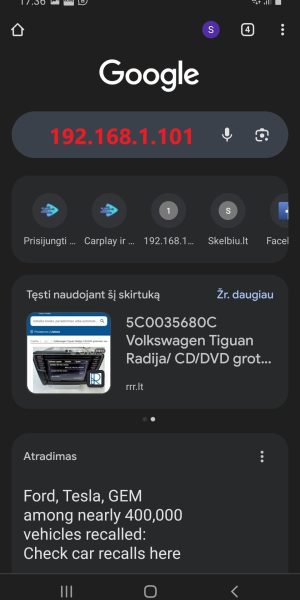
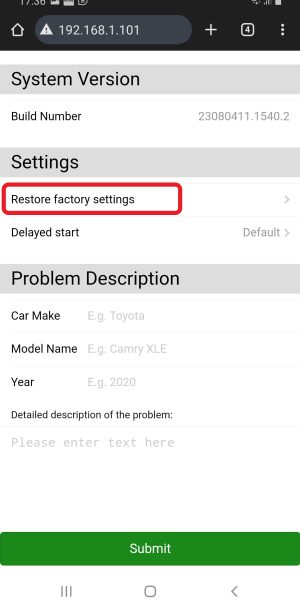
Then on your phone go to Settings → Wi‑Fi → three dots at the top → Wi‑Fi Direct and select AUTO-XXXX. Once connected, enter 192.168.1.101 in Chrome, tap Restore factory settings and OK. More details in the Android Auto adapter PDF manual.
9. Update the adapter firmware
Wireless Android Auto adapter (AUTO-XXXX). If the phone is connected wirelessly, turn off Bluetooth and forget the adapter's Wi‑Fi network. While the adapter has power, hold the button for 3 seconds – the light turns green after 1–2 seconds. On your phone go to Wi‑Fi → three dots → Wi‑Fi Direct, select AUTO-XXXX, enter 192.168.1.101 in Chrome and tap Update. During the update the blue and red lights flash alternately. After about 30 seconds, when the white light comes on, unplug the adapter and plug it back into the USB port.
Carlinkit 5.0 2AIR (2-in-1) adapter. Turn off Bluetooth and forget the adapter's Wi‑Fi network. While the adapter has power, connect to the Wi‑Fi network Autokit_XXXX (password 12345678), enter 192.168.50.2 in Chrome, tap HELP and then Check Update at the bottom. Then turn off your phone's Wi‑Fi, tap Check Update again and Update. Halfway through, the phone will ask you to reconnect to the adapter's Wi‑Fi – reconnect, go back to the browser and tap Confirm. While the green and red lights flash alternately, wait about a minute; when the light goes out, unplug the adapter.
More update examples on our YouTube channel.
10. Stuttering audio or dropped connection
Turn off VPN and Personal Hotspot. In your phone's battery settings, turn off power saving (battery optimisation) for the Android Auto app – otherwise the phone may cut the connection in the background. If your phone connects automatically to the car's factory Bluetooth, disable that connection so the phone connects to the adapter first.
Symptom → cause → fix
| Symptom | Most common cause | What to do |
|---|---|---|
| Adapter light is off | The USB port provides no power or does not carry data | Try another USB port, check that Android Auto works with a cable |
| Phone does not see the adapter | Bluetooth or Wi‑Fi off, phone does not support wireless Android Auto | Turn on both, check your Android version |
| Pairs, but Android Auto does not appear | Corrupted app cache, old pairing data | Clear the cache, forget the adapter and pair again |
| Has to be connected manually every time | The phone connects to the car's factory Bluetooth first | Disable the connection to the car's Bluetooth, keep only the adapter |
| Connection drops while driving | Battery optimisation, VPN, unstable USB power | Turn off battery optimisation for Android Auto, turn off VPN, try another USB port |
| Stopped working after a phone update | Adapter firmware not compatible with the new version | Update your apps and the adapter firmware |
| Nothing helps | Corrupted adapter settings | Factory reset the adapter |
Still not solved?
Send us your adapter model, phone model and Android version, car model and, if possible, a short video – we will help by phone, email or WhatsApp.
Contact us →When it is worth replacing the adapter
If the adapter is old, the manufacturer no longer updates it and the problems keep coming back after all the steps, it is often simpler to replace it. We currently recommend the Spike Wireless Air Pro – a compact adapter that supports both wireless Android Auto and Apple CarPlay. More options in the wireless adapters category.
Using an iPhone? See the article Wireless CarPlay adapter not connecting.
Frequently asked questions
Why is wireless Android Auto not connecting?
The most common causes are a corrupted Google Play services or Android Auto cache, Bluetooth or Wi‑Fi turned off, old pairing data, the wrong USB port or outdated software. In most cases clearing the cache and restarting the phone helps.
What phone do I need for wireless Android Auto?
A phone with Android 11 or newer and 5 GHz Wi‑Fi support.
Will a wireless adapter work in a car without Android Auto?
No. The adapter only makes existing wired Android Auto wireless. If the car has no Android Auto, you need a module, activation or a new screen.
Will clearing the cache delete my data?
No. Clearing the cache only removes temporary files; your data and settings stay.
Do I have to update the adapter?
No. If everything works well, we do not recommend updating. Update only if problems appear, for example after a phone update.
Who can I contact if nothing helps?
Contact Carplay.lt by phone +370 626 64282, email info@carplay.lt or WhatsApp. Opening hours: Mon–Fri 9:00–18:00 (Lithuanian time).
Conclusion
Most wireless Android Auto problems are solved by clearing app cache, restarting the phone and updating your apps. If the problem keeps coming back, reset network settings, update the adapter or factory reset it.
If nothing helps, write to us. We will help find the cause and, if needed, suggest the right solution.